Setting Up SSH Authentication for GitHub and GitLab
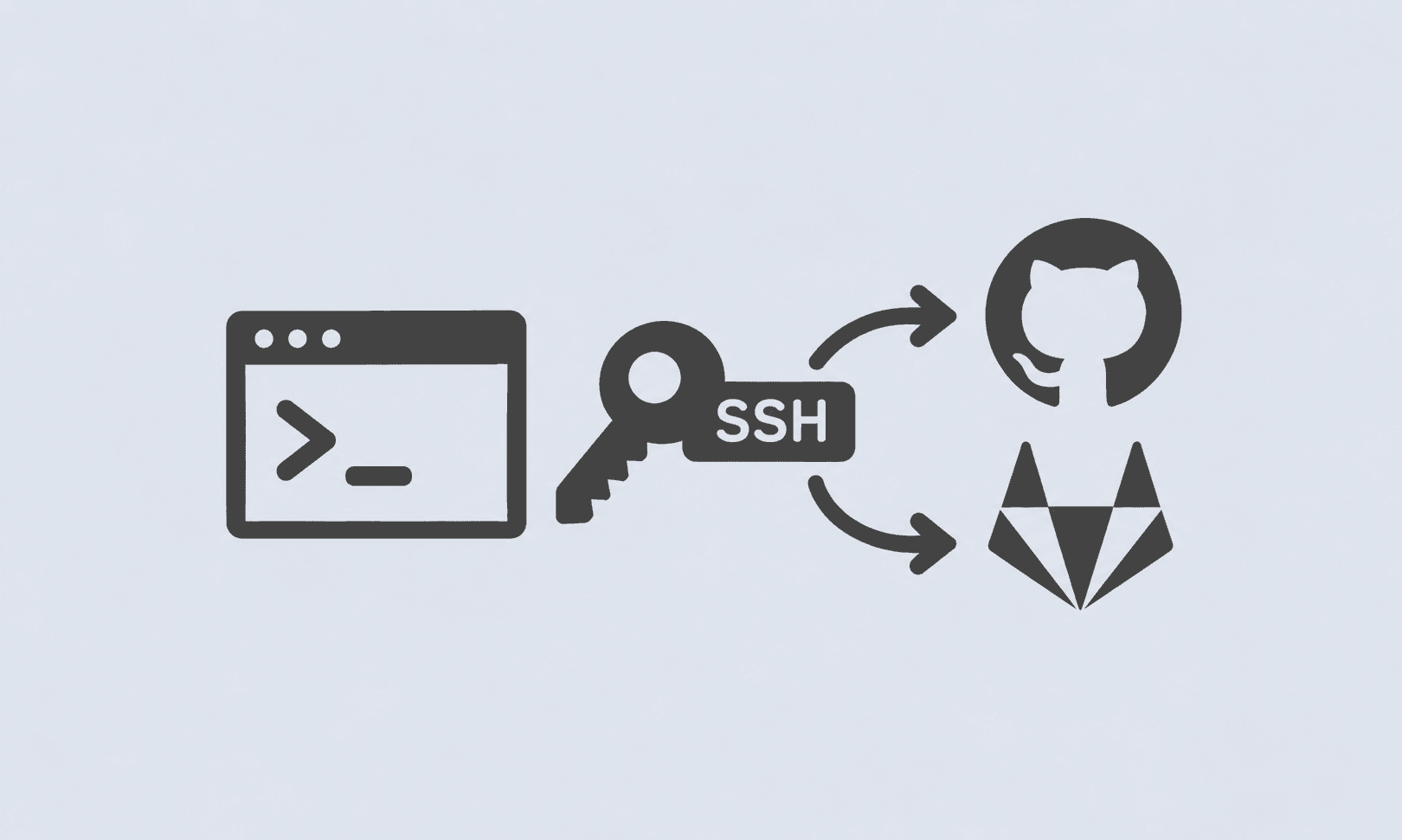
SSH authentication makes working with GitHub and GitLab more convenient and secure by allowing Git to authenticate using an SSH key instead of repeatedly entering credentials.
This guide walks through generating an Ed25519 SSH key, configuring Git, adding the key to an SSH agent, and testing authentication with both GitHub and GitLab.
1. Configure Your Git Identity
First, configure the name and email Git will associate with your commits:
git config --global user.name "Your Name"
git config --global user.email "your_email@example.com"
To verify the configuration:
git config --global --list
Common mistake
Do not use:
git config --global list
The correct command is:
git config --global --list
The
--list--list2. Generate an Ed25519 SSH Key
Ed25519 is a modern SSH key type that provides strong security with a relatively small key size.
Run:
ssh-keygen -t ed25519 -C "your_email@example.com"
Alternatively, you can use a descriptive comment:
ssh-keygen -t ed25519 -C "GitHub-GitLab"
When prompted:
Enter file in which to save the key:
Press Enter to use the default location:
~/.ssh/id_ed25519
You'll then be asked for a passphrase.
Using a passphrase is recommended because it provides additional protection if someone gains access to your private key file.
3. Start the SSH Agent
Start the SSH authentication agent:
eval "$(ssh-agent -s)"
You should see something similar to:
Agent pid 123
The process ID will be different on every system.
4. Add Your SSH Key
Add the private key to the SSH agent:
ssh-add ~/.ssh/id_ed25519
You should see a confirmation similar to:
Identity added: /c/Users/username/.ssh/id_ed25519
5. Copy Your Public Key
Display the public key:
cat ~/.ssh/id_ed25519.pub
The output will look similar to:
ssh-ed25519 AAAA... your_comment
Important security note
The
.pubNever share your private key.
Do not publish or send:
~/.ssh/id_ed25519
Only the following is intended to be shared:
~/.ssh/id_ed25519.pub
6. Add the Key to GitHub
Sign in to GitHub and open:
Settings → SSH and GPG keys → New SSH key
Give the key a recognizable title, such as:
Windows PC
Paste the contents of:
cat ~/.ssh/id_ed25519.pub
into the key field and save it.
7. Test GitHub Authentication
Run:
ssh -T git@github.com
The first time you connect, SSH may ask you to confirm GitHub's host authenticity.
After successful authentication, GitHub should respond with a message indicating that authentication succeeded and that GitHub does not provide shell access.
That message is normal.
8. Add the Key to GitLab
Sign in to GitLab and go to:
Preferences/Settings → SSH Keys
Add the contents of:
cat ~/.ssh/id_ed25519.pub
Give it a descriptive title, for example:
Windows PC
Then save the key.
9. Test GitLab Authentication
Run:
ssh -T git@gitlab.com
After successful authentication, GitLab should display a welcome message confirming your account.
If you initially receive:
Permission denied (publickey).
check that:
-
The public key was added to the correct GitLab account.
-
The SSH agent is running.
-
The key has been added with
.Codessh-add -
You're using the correct SSH key.
-
Your SSH configuration isn't selecting another key.
You can check loaded keys with:
ssh-add -l
10. Use SSH URLs for Git Repositories
Once SSH authentication is configured, clone repositories using their SSH URLs.
GitHub
git clone git@github.com:USERNAME/REPOSITORY.git
GitLab
git clone git@gitlab.com:USERNAME/REPOSITORY.git
For an existing repository, check the remote:
git remote -v
If it is using HTTPS and you want to switch to SSH:
git remote set-url origin git@github.com:USERNAME/REPOSITORY.git
For GitLab:
git remote set-url origin git@gitlab.com:USERNAME/REPOSITORY.git
11. Verify Everything
You can verify your Git configuration:
git config --global --list
Check the SSH agent:
ssh-add -l
Test GitHub:
ssh -T git@github.com
Test GitLab:
ssh -T git@gitlab.com
If all three checks work, your Git environment is ready to use SSH authentication.
Troubleshooting
CodePermission denied (publickey)
Permission denied (publickey)Run:
ssh-add -l
If no identities are listed:
ssh-add ~/.ssh/id_ed25519
Then test again:
ssh -T git@gitlab.com
Multiple SSH keys
If you use different SSH keys for different accounts, create an SSH configuration file:
~/.ssh/config
Example:
Host github.com
    HostName github.com
    User git
    IdentityFile ~/.ssh/id_ed25519

Host gitlab.com
    HostName gitlab.com
    User git
    IdentityFile ~/.ssh/id_ed25519
Then test each service again.
Final Checklist
-
[ ] Configure Git username
-
[ ] Configure Git email
-
[ ] Generate an Ed25519 SSH key
-
[ ] Start
Codessh-agent -
[ ] Add the key with
Codessh-add -
[ ] Add the public key to GitHub
-
[ ] Add the public key to GitLab
-
[ ] Test GitHub with
Codessh -T git@github.com -
[ ] Test GitLab with
Codessh -T git@gitlab.com -
[ ] Use SSH repository URLs for Git operations
Once configured, GitHub and GitLab can authenticate your Git operations through SSH without requiring you to enter your account password for every operation.