Ollama on Windows — Complete CMD Guide
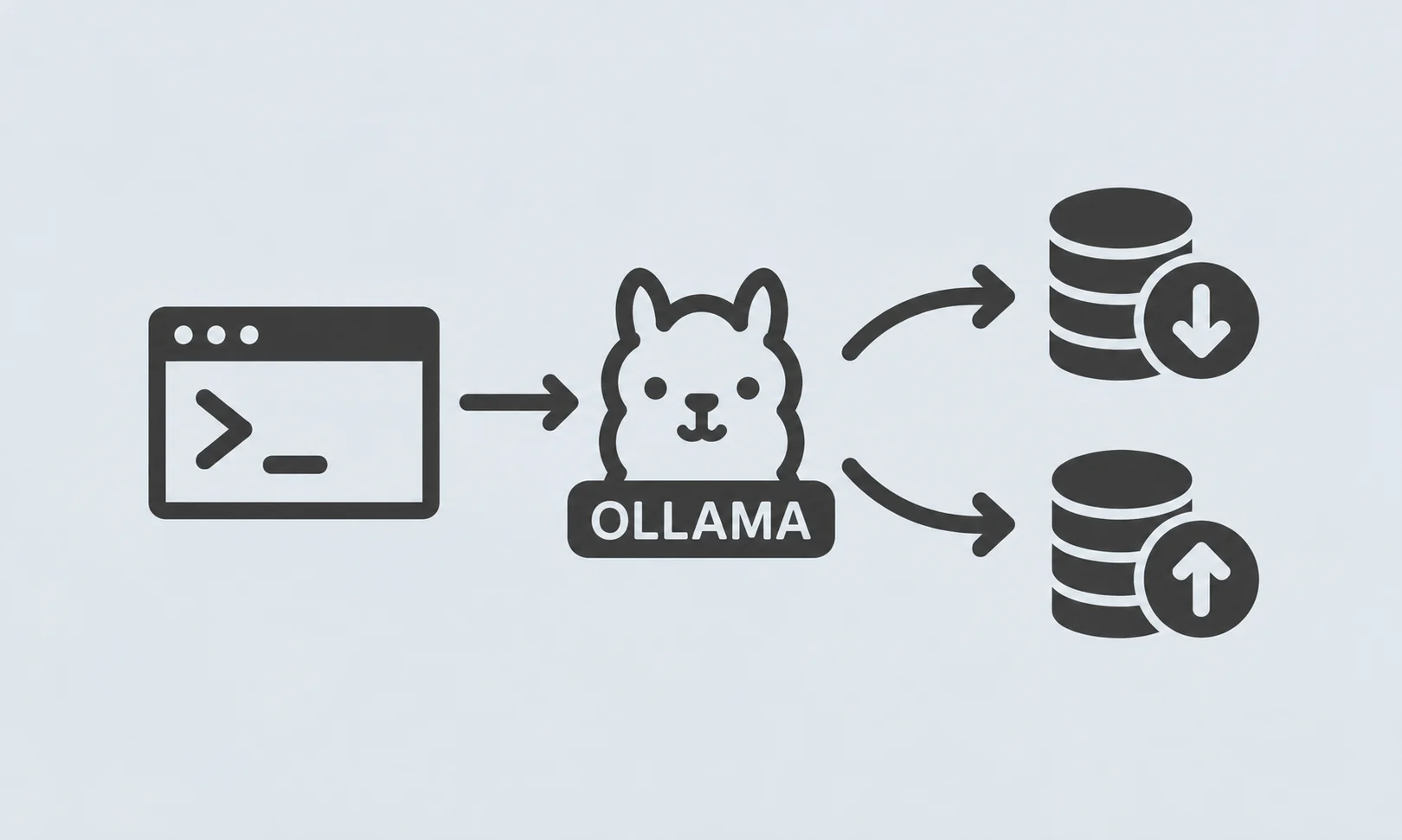
Ollama can run natively on Windows, so WSL is not required. After installation, the
ollamahttp://localhost:114341. Check if Ollama is installed
Open CMD:
ollama --version
If Ollama is installed, you should see something similar to:
ollama version ...
You can also check whether Windows can find the executable:
where ollama
Example:
C:\Users\YourName\AppData\Local\Programs\Ollama\ollama.exe
If you get:
'ollama' is not recognized as an internal or external command
Ollama is either not installed or its PATH is not available in the current terminal.
2. Check whether Ollama is already running
Run:
ollama ps
You can also test the API:
curl http://localhost:11434/api/tags
If Ollama is running, you should get JSON containing your installed models.
Ollama's Windows application normally runs in the background after installation. (Ollama)
3. Start Ollama manually from CMD
If Ollama isn't running, use:
ollama serve
You may see something like:
Listening on 127.0.0.1:11434
Important: keep this CMD window open while using the manually started server.
Ollama officially provides
ollama serveBetter workflow
Open CMD Window 1:
ollama serve
Then open CMD Window 2 and use:
ollama ps
or:
ollama ls
4. Check all installed models
Use:
ollama ls
You may see:
NAME              ID              SIZE      MODIFIED
gemma3:latest     abc123...       3.3 GB    ...
qwen3:8b          xyz456...       5.2 GB    ...
Older guides may show:
ollama list
but the current CLI documentation uses:
ollama ls
(Ollama)
5. Check currently running models
Use:
ollama ps
Example:
NAME          ID        SIZE      PROCESSOR    UNTIL
qwen3:8b      abc...    5.2 GB    100% GPU     ...
This is different from
ollama lsCodeollama ls
ollama lsShows models installed on your computer.
Codeollama ps
ollama psShows models currently loaded/running.
(Ollama)
6. Get information about a model
For example:
ollama show qwen3:8b
Or:
ollama show gemma3
This can be useful for checking the model's configuration and information.
7. Download/install a new model
Use:
ollama pull MODEL_NAME
For example:
ollama pull gemma3
Or:
ollama pull qwen3:8b
Ollama downloads the model to your local machine. (Ollama)
After downloading, verify:
ollama ls
8. Run a model
After installing a model:
ollama run gemma3
For example:
ollama run qwen3:8b
You'll enter an interactive chat:
>>> Hello
Then Ollama responds locally.
The current CLI uses
ollama run MODEL_NAME9. Run a model with a prompt directly
You don't have to enter interactive mode.
Example:
ollama run gemma3 "Explain Docker in simple words"
Or:
ollama run qwen3:8b "Write a Python hello world program"
10. Stop a running model
First check:
ollama ps
Then:
ollama stop MODEL_NAME
Example:
ollama stop qwen3:8b
The official CLI provides
ollama stop11. Remove/delete a model
First check the exact model name:
ollama ls
Then:
ollama rm MODEL_NAME
Example:
ollama rm qwen3:8b
Then verify:
ollama ls
The model should no longer appear.
Ollama's current CLI documents
ollama rm12. Replace an old model with a new one
For example, suppose you currently have:
gemma3
qwen3:8b
llama3.2
First inspect:
ollama ls
Remove something you don't need:
ollama rm llama3.2
Install your new model:
ollama pull qwen3.5
Then run it:
ollama run qwen3.5
13. Update an existing model
You can simply pull it again:
ollama pull MODEL_NAME
Example:
ollama pull gemma3
Ollama can download the newer/different layers rather than unnecessarily downloading everything again. (Ollama Documentation)
14. See all available Ollama commands
Run:
ollama
This opens Ollama's interactive CLI menu in current versions. (Ollama)
Or use:
ollama --help
For a specific command:
ollama serve --help
ollama run --help
ollama pull --help
15. Check the Ollama API
Ollama normally exposes:
http://localhost:11434
Test it:
curl http://localhost:11434
You can also check installed models through the API:
curl http://localhost:11434/api/tags
If the server is working, you'll receive JSON.
16. Completely remove a model
If you want to remove a model and its downloaded data:
ollama rm MODEL_NAME
Example:
ollama rm gemma3
Then:
ollama ls
If it isn't listed anymore, the model has been removed.
17. Completely uninstall Ollama from Windows
If you want to remove Ollama itself, don't just delete
ollama.exeGo to:
Windows Settings → Apps → Installed apps → Ollama → Uninstall
The official Windows installer registers an uninstaller in Windows. (Ollama)
Ollama's Windows files include locations such as:
%LOCALAPPDATA%\Ollama
%LOCALAPPDATA%\Programs\Ollama
and models/configuration are normally under:
%HOMEPATH%\.ollama
(Ollama)
18. Reinstall Ollama
The easiest method is the official Windows installer:
After installation, open a new CMD window:
ollama --version
Then:
ollama ls
Then install a model:
ollama pull gemma3
And run it:
ollama run gemma3
19. One complete CMD workflow
If you're setting up Ollama from scratch, this is the basic sequence:
ollama --version
ollama ls
ollama ps
If the server isn't running:
ollama serve
Open another CMD:
ollama ls
Install a model:
ollama pull gemma3
Check it:
ollama ls
Run it:
ollama run gemma3
After you're finished:
ollama ps
Stop the model:
ollama stop gemma3
If you don't want the model anymore:
ollama rm gemma3
20. Quick command cheat sheet
|Purpose|Command| |---|---| |Check installation|
ollama --versionwhere ollamaollama serveollama lsollama psollama pull MODELollama run MODELollama stop MODELollama rm MODELollama show MODELollama --helpcurl http://localhost:11434curl http://localhost:11434/api/tagsThese commands correspond to the current Ollama CLI reference. (Ollama)
Recommended workflow
If your goal is simply "check what I have → remove old models → install a new model", use:
ollama --version
ollama ls
ollama ps
Then remove unwanted models:
ollama rm MODEL_NAME
Install the new one:
ollama pull NEW_MODEL
Verify:
ollama ls
Run:
ollama run NEW_MODEL
And when finished:
ollama stop NEW_MODEL
Note: On Windows, Ollama normally runs as a background application, so you usually don't need to manually run
ollama serve